by silent90018 | May 20, 2022 | Uncategorized
[xyz-ips snippet=”reCAPTCHAv3Validation”]
Thank you!
by silent90018 | May 15, 2022 | Uncategorized
Contact Form
by silent90018 | Mar 6, 2022 | Mac
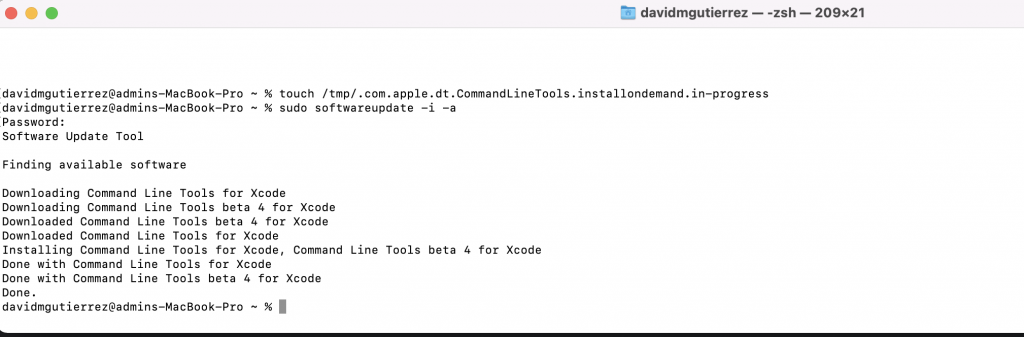
Launch Terminal
touch /tmp/.com.apple.dt.CommandLineTools.installondemand.in-progress
sudo softwareupdate -i -a
by silent90018 | Apr 9, 2021 | Mac
Delete all WiFi configuration files
- Turn off WiFi by clicking the Turn WiFi Off in the menu bar.
- Go to Finder and click Go and Go To Folder… (or press Command+Shift+G)
- Enter the following and click Go
- /Library/Preferences/SystemConfiguration/
- Select the following files and move to trash:
- com.apple.airport.preferences.plist
- com.apple.network.identification.plist
- com.apple.wifi.message-tracer.plist
- NetworkInterfaces.plist
- preferences.plist
- Empty trash
- Reboot Mac
- Turn on Wi-Fi and reconnect to network
by silent90018 | Feb 12, 2021 | Mac
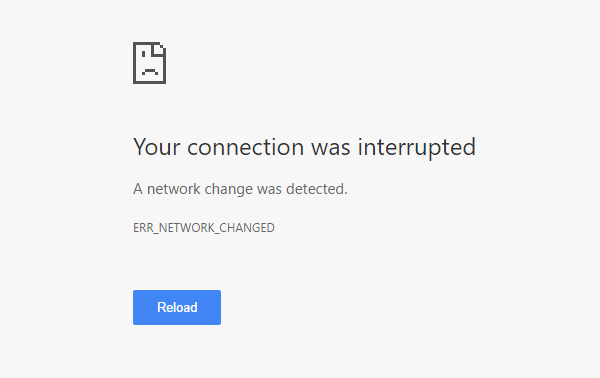
Mac Chrome error “Your connection was interrupted”
This is due to continuous switching between the local machine and router DNS
To verify DNS server switching
- Go to System Preferences
- Select Network
- Select Adapter and click Advanced button
- Select DNS tab
- Here you can see the continuous switching between 127.0.0.1 & router DNS
- Because of continuous switching, you cannot change and save DNS Servers settings
To resolve issue
- Search Terminal
- In Terminal type: networksetup -setdnsservers Wi-Fi 8.8.8.8 8.8.4.4 [ENTER]
- Clear Google Chrome web browser cache
- Restart computer